







Android users in Pakistan have dozens of powerful photography apps to choose from. Whether you're capturing everyday moments, editing videos, or restoring old photos, there's an app for every skill level and need. This guide ranks 12 of the best photography apps available on Android, based on ratings and real-world features, to help you find the perfect fit.
The right photography app depends on your goals. Some apps excel at quick captures and organization, while others offer professional-grade editing or AI-powered enhancements. We've tested and ranked these apps by user ratings and core functionality so you can choose wisely.
Video Editor & Maker - InShot
InShot leads the pack for video editing and slideshow creation. With over 500 million installs and a 4.84 rating, it combines ease of use with powerful features like music syncing, transitions, and filters. Best for creators who want to edit videos and create content quickly, even on budget devices. One note: the free version includes watermarks, which you'll need to remove with a premium subscription.
Photo Frame App, Collage Maker
For photo collages and framed layouts, Photo Frame App, Collage Maker delivers with a 4.82 rating and clean interface. It offers dual frames, love-themed borders, and quick grid layouts. Best for users who love creating frame collections and sharing on social media. The honest drawback: limited design options compared to paid competitors, and occasional ads.
Camera for Android
This native system camera app is fast, simple, and rated 4.76. It bypasses bloated default cameras to give you clean, speedy captures in HD. Best for straightforward photography without filters or effects—just point, shoot, and save. Trade-off: minimal editing features, so you'll need to open another app for anything beyond basic cropping.
Lightroom Photo & Video Editor
Adobe's Lightroom (4.51 rating, 100 million installs) is the professional choice for serious hobbyists. Non-destructive editing, powerful color grading, and AI-powered enhancements let you refine portraits, landscapes, and food photos with precision. Best for photographers who want studio-grade control on their phone. Cost: Lightroom is subscription-based, which may not suit casual users.
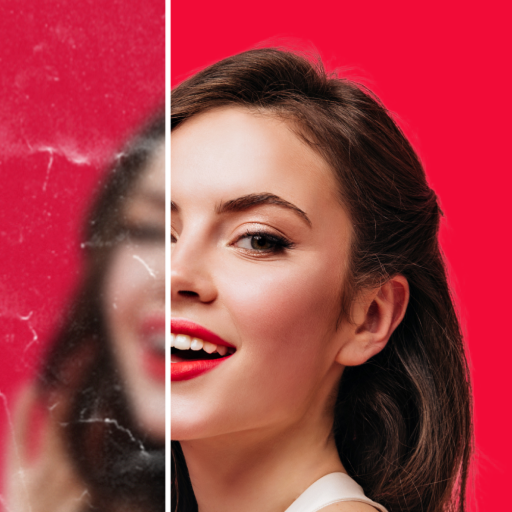
UpFoto - AI Photo Enhancer
UpFoto (4.50 rating) automates photo improvement using AI. Upload a blurry, dim, or damaged photo, and the app enhances, sharpens, and restores it in seconds. Best for quick fixes and restoring old or low-quality shots without manual tweaking. Limitation: free credits run out quickly; bulk restoration requires a paid plan.
Photo Lab Picture Editor & Art
With a 4.47 rating and 100 million installs, Photo Lab offers artistic transformations. Apply cartoon effects, PS2 filters, and AI-powered artistic effects to turn ordinary photos into art. Best for creative users who want unique, stylized edits without complex controls. Caveat: the range of artistic filters is fun but sometimes gimmicky; not ideal for serious photo correction.
Google Photos
The industry standard, Google Photos (4.40 rating, 10 billion installs) is the easiest way to back up, organize, and access your photo library across devices. Automatic organization, intelligent search, and cloud backup are built in. Best for users who want a single hub for all their photos and seamless syncing. One caveat: storage is limited (15 GB free), and unlimited photo backup is no longer available in its original form.
Gallery
Google's lightweight Gallery app (4.24 rating, 1 billion installs) offers speedy browsing and organization without the cloud overhead. Perfect for quick viewing, managing albums, and on-device organization. Best for users who want a fast, offline photo viewer without cloud complexity. Trade-off: limited editing features; you'll rely on other apps for adjustments.
Remini - AI Photo Enhancer
Remini (4.11 rating, 500 million installs) specializes in restoration and upscaling. Turn blurry photos sharp, restore faded old pictures, and enhance low-quality shots with AI in one tap. Best for restoring family photos, old prints, and damaged memories. Real limitation: free version offers limited daily enhancements; serious restoration work requires a subscription.
B612 AI Photo & Video Editor
B612 (4.08 rating, 500 million installs) brings trendy effects, stickers, and filters inspired by social media trends. Quick edits, animated stickers, and face filters make it popular with younger users. Best for social media content and fun, filter-heavy edits. Honest note: heavy on filters, light on practical editing tools; not suitable for serious photography work.
Picsart AI Photo Editor, Video
Picsart (4.02 rating, 1 billion installs) is known for background removal and object deletion. Use AI to swap backgrounds, remove unwanted objects, or refactor scenes. Best for creative photo manipulation and social media graphics. Caveat: the free version is ad-heavy, and advanced features are locked behind a premium subscription.
Snapseed
Snapseed (3.70 rating, 100 million installs) offers precise, localized adjustments. Selective editing, selective blur, and fine-tuned controls let you perfect specific areas of a photo. Best for advanced users who want pixel-level control and non-destructive editing. Challenge: the interface is less intuitive than competitors; expect a learning curve.
Common Challenges
Photography apps on Android come with real trade-offs. Many free versions hide powerful features behind paywalls and subscriptions—InShot, Lightroom, Remini, and Picsart all monetize aggressively. Ads appear frequently in free tiers, interrupting your workflow. Lower-end Android devices may struggle with RAM-heavy apps like Lightroom or Picsart, causing slowdowns or crashes. Privacy is another concern: many apps request broad permissions (contacts, location, file access) that aren't needed for photo editing. Finally, watermarks on exported images (especially in InShot, Picsart, and UpFoto) can be annoying if you don't pay to remove them.
So, Which One Is Best?
There's no single “best” app—it depends on your needs. If you edit videos, InShot is unbeatable. If you want organization and cloud backup, Google Photos is the obvious choice. For professional editing, Lightroom is your answer. For quick restoration, choose Remini or UpFoto. For fun, filter-heavy edits, B612 and Picsart are engaging. Use this ranking as a starting point, but check current reviews and ratings on Google Play Store before installing, as app quality and features change frequently.
When you download and install photography apps on Android, remember to enable “Install unknown apps” permission for your app store (only if downloading from APK Store or another trusted source), and disable it again after installation to protect your device.
Frequently Asked Questions (FAQs)
Which photography app is best for beginners?
Google Photos or Camera for Android are the best starting points. They're intuitive, require minimal learning, and deliver solid results without overwhelming controls. Once comfortable, move to InShot for video or Picsart for creative edits.
Can I edit photos professionally on Android?
Yes. Lightroom, Snapseed, and Photo Lab offer professional-grade tools. Lightroom is the industry standard, with non-destructive editing and advanced color grading. For free options, Snapseed provides excellent local adjustment capabilities.
Are photography apps safe to use?
Apps from Google Play Store are generally safe, but check permissions carefully. Photography apps often request access to contacts, location, and files—unnecessary permissions are a red flag. Download only from official sources like Google Play Store or trusted app directories like APK Store.
Do I need to pay for photography apps?
Many apps offer solid free versions, though premium subscriptions unlock advanced features and remove ads. Google Photos, Snapseed, and Camera for Android are fully free. Others like Lightroom and Remini are subscription-based but offer free trials.
How do I install apps safely on Android?
Download from Google Play Store or trusted sources like APK Store. Before installing from outside Play Store, enable “Install unknown apps” from your security settings, install, and then disable the setting. Always read reviews and check permissions before tapping Install.