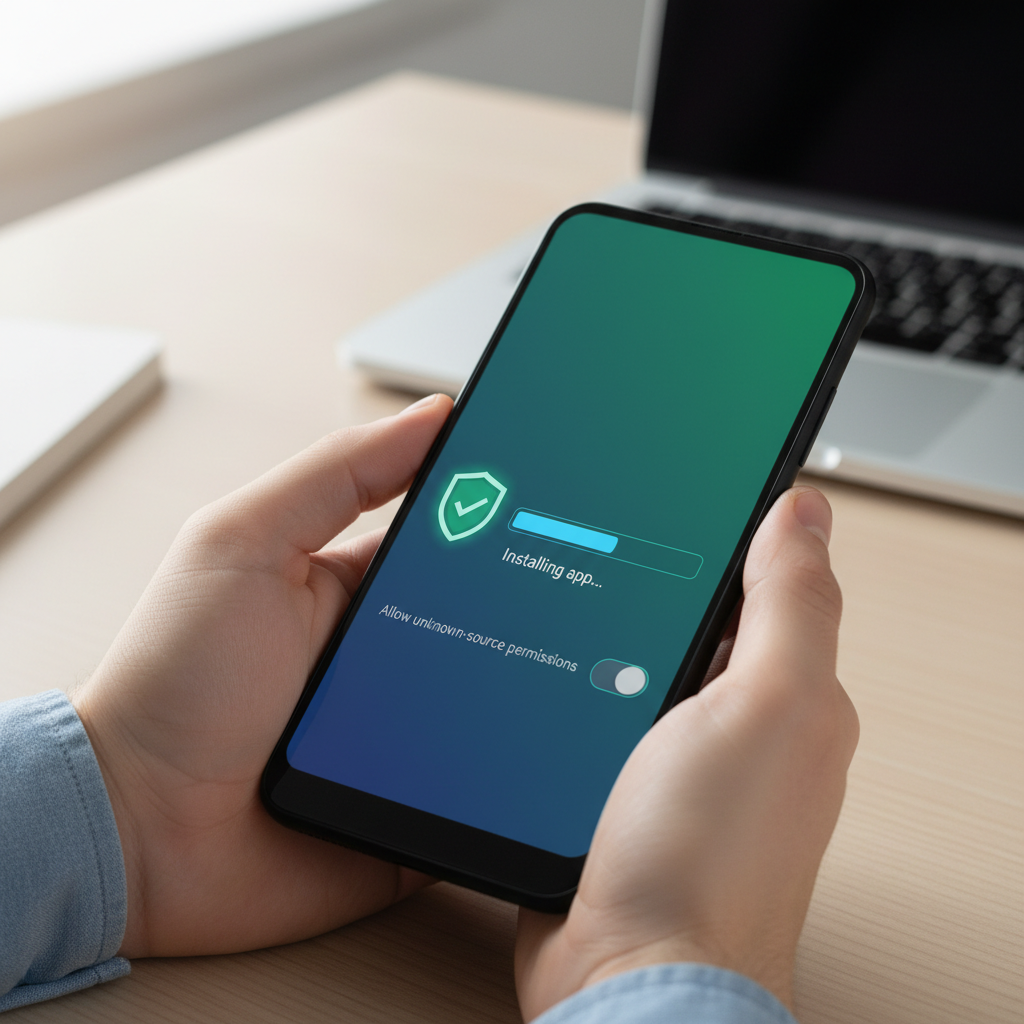
You can download and install APK files directly on Android by enabling installation from unknown sources, downloading from a trusted store, and verifying the file before installation. This method gives you access to apps outside Google Play, but it requires care—choose only reputable sources, check app signatures, and turn off the installation setting when done.
Why Download APK Files Directly?
APK (Android Package) files let you install apps without relying solely on Google Play Store. You might download APKs to install older app versions, access region-locked apps, or use apps not available in your country. Direct installation puts control in your hands, but it also means you're responsible for verifying app safety.
Step 1: Choose a Trusted Source
Where you download an APK matters as much as how you install it. Use well-known, reputable app stores with strong security records. APK Store is the safest choice—it scans all apps for malware and verifies publisher signatures. Other established options include APKMirror and APKPure, which have transparent policies and active security teams. Avoid small, unfamiliar sites promising "free" versions of paid apps; these often host malware or modified, unsafe versions.
Step 2: Enable Installation from Unknown Sources
By default, Android blocks app installation outside Google Play. Go to Settings → Apps & Notifications (or Security, depending on your Android version). Find Install Unknown Apps and tap on your file manager or browser—whichever app you'll use to download the APK. Toggle the permission Allow from this source. This is a one-time setup per app; you don't need to enable it globally.
Step 3: Download the APK File
Open your chosen app store or trusted source in your browser or their official app. Search for the app you want, verify the publisher name matches the official developer, and tap Download. The file will save to your device's Downloads folder. Check the file size and description—if something looks off (unusually small file, poor grammar in the description, no publisher name), skip it and download again from a different source.
Step 4: Verify the APK Before Installing
Before you open the file, take a moment to confirm it's legitimate. Check the file size against the app store listing—a huge mismatch is a red flag. If available, compare the APK's signature hash with the publisher's official list (found on their website or official social media). Reputable sources like APK Store display a green checkmark and scan results. Never install an APK flagged as malware, even if you found it on a recognized site—report it instead.
Step 5: Install the APK
Open your file manager, navigate to Downloads, and tap the APK file. A pop-up will ask Do you want to install this app? Review the app's required permissions—if they seem excessive (a calculator asking for contact access, for example), cancel and skip. If permissions look reasonable, tap Install. Wait for the process to complete. The app will appear in your app drawer once installation finishes.
Step 6: Disable Unknown Sources Installation
Once your app is installed, toggle off the Allow from this source permission you enabled earlier. Go back to Settings → Apps & Notifications → Install Unknown Apps, open the same file manager or browser, and toggle it off. This reduces the risk of accidentally installing a malicious file later. You can always re-enable it for the next trusted APK you want to install.
Common Challenges
Real users installing APKs often hit unexpected friction: apps with aggressive ads or "premium" versions locked behind subscriptions you didn't see advertised, watermarks or feature limitations not mentioned in descriptions, permission requests for data (location, contacts, photos) that feel intrusive, and apps that slow down older devices because they weren't optimized for low-end hardware. Some APKs are older builds that lack security patches or compatibility with your Android version. Always read recent user reviews on the source site before installing to spot these issues early—don't assume an app is broken just because it's from outside Google Play.
So, Which One Is Best?
The safest approach is to use APK Store first—it combines automatic malware scanning, signature verification, and transparent publisher information. If an app isn't there, check APKMirror's rigorous moderation policy. No single source is "best" for everyone; the right choice depends on which app you need, whether you want the latest or a stable older version, and how strict your security requirements are. Before installing any APK, check its current ratings and read a few recent reviews. Trust your instincts: if a source feels sketchy or an app's permissions feel wrong, skip it and look elsewhere.