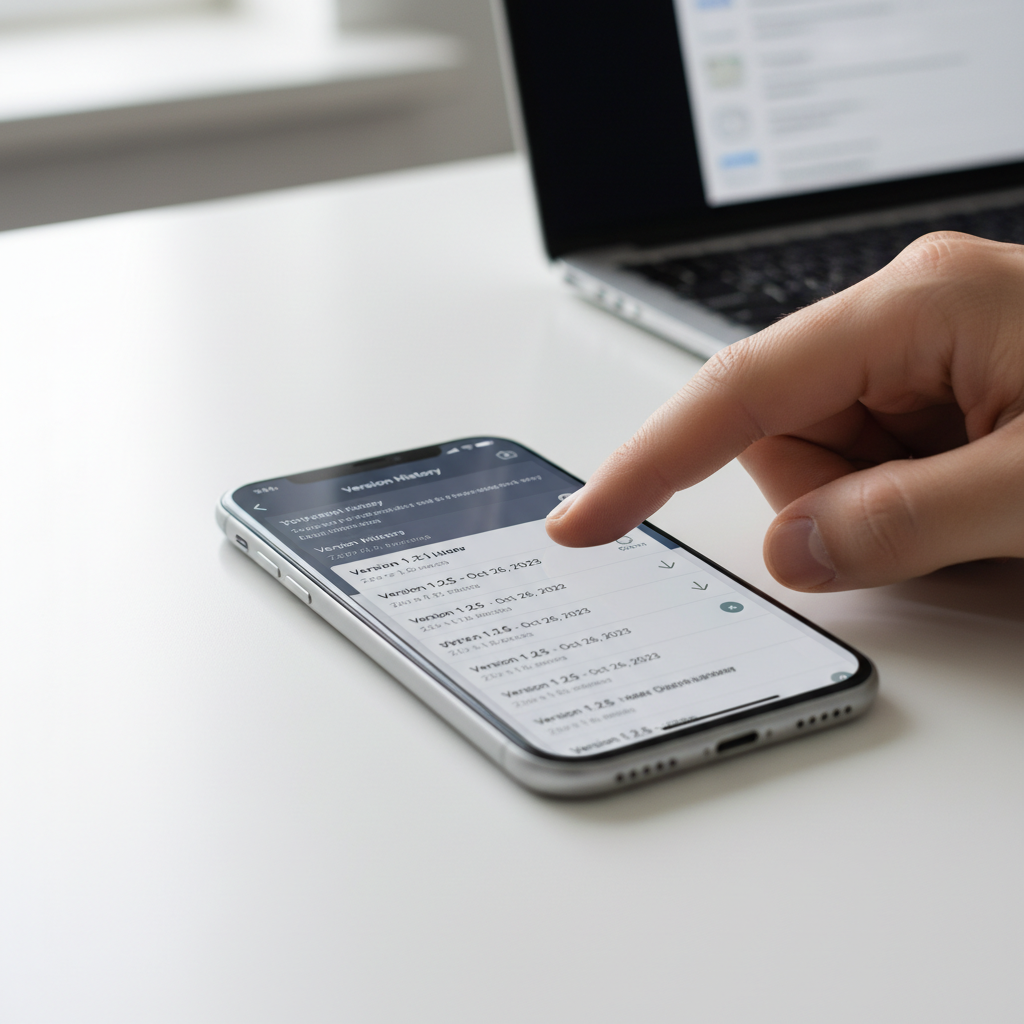
Sometimes the newest version of an app is the worst thing that can happen to your phone. An update strips a feature you relied on, breaks compatibility with an older Android build, or balloons in size until a budget device chokes. Android remains the dominant mobile platform, holding roughly 71 percent of the global mobile operating system market, and that scale means millions of users hit a bad update on the same day. Google itself reports more than three billion active Android devices worldwide, spread across thousands of hardware configurations that not every app version supports equally.
Rolling an app back to an older APK is a legitimate fix. The catch is that the Play Store never lets you do it, so people turn to third-party APK sites, and that is where risk creeps in. Older binaries are a favorite wrapper for malware, repackaged installers, and fake "modded" builds. This guide walks through how to download an older APK version the safe way: where to get it, how to confirm it is the real file, and what to check before you tap install.
Why You Might Want an Older APK Version
The reasons are practical, not exotic. A redesigned interface buries a button you used daily. A new release demands Android 13 while your phone runs Android 10. An update introduces a bug that the developer has not patched yet. Or the latest build simply runs slower on aging hardware.
Reverting to a known-good version restores the experience you had before. It is the mobile equivalent of declining a Windows update that broke your workflow. The key difference is that Android gives you no built-in rollback, so you supply the older file yourself.
Challenges of Downloading Older APK Versions
Going back in time with your apps carries real friction, and knowing it upfront keeps you out of trouble.
- Tampered files. Older versions are commonly repackaged with adware or trojans, then passed off as the original. The further back you go, the more mirrors host altered copies.
- Signature mismatches. Android refuses to install an APK whose signing certificate differs from the version already on your phone. A rebuilt or cracked file will fail or force an uninstall first.
- Security holes. Old versions miss the patches that came later. A two-year-old build of a banking or messaging app may carry vulnerabilities that have since been closed.
- Forced updates. Some apps detect an outdated version and refuse to run until you upgrade, undoing your rollback the moment you open them.
Step-by-Step: Download an Older APK Version Safely
1. Find the version number you actually want
Do not grab "any older version." Identify the exact build that worked. Check the app's changelog, a community thread, or your own memory of when the problem started. Knowing you want, say, version 2.22.10 instead of the current 2.24.x narrows your search and helps you spot a fake.
2. Use a source with real version history
Choose a repository that keeps an archive of past releases with their version codes and upload dates visible. A trustworthy source shows the developer name, the signing details, and a file hash. On APK Store every hosted file is signature-pinned and malware-scanned before it ships, and version history is published openly so you can match the exact build you need.
3. Confirm the signature matches the developer
This is the step most people skip. Before installing, compare the APK's signing certificate against the official one. If you already have a newer version installed from the same developer, the signatures must match or the install will fail. A mismatch is a red flag that the file was rebuilt by someone other than the developer.
4. Scan the file before you open it
Upload the APK to a multi-engine scanner, or rely on a source that scans on your behalf. A clean scan is not a promise of perfect safety, but a flagged file is a clear stop sign. Pair the scan with Play Protect, which checks apps on-device even when they come from outside the store.
5. Disable auto-update for that single app
Once your older version is running, turn off automatic updates for it in the Play Store settings, or it will quietly upgrade itself and undo your work. Update the app again only when the developer fixes whatever pushed you to roll back.
A Quick Safety Caveat
Older APKs lack later security fixes, so treat sensitive apps with caution. For banking, payments, and primary messaging accounts, prefer the current version from an official source whenever you can, and reserve rollbacks for apps where a missing feature or a broken update genuinely outweighs the patch gap. Verify the signature, scan the file, and keep Play Protect on.
When a Rollback Is Worth It and When It Is Not
Reach for an older version when a specific, recent update broke something you depend on and the developer has not fixed it. In that case a verified older APK from a source with published signatures and scans is a reasonable, low-risk move. Avoid rollbacks when the only motive is to dodge a paywall or unlock a paid feature, because those "older" files are usually tampered and defeat the entire point of staying safe. The honest rule is simple: roll back to recover function, never to pirate, and always confirm the file is genuine before it touches your phone. For a deeper walkthrough of confirming any download, see our guide on how to verify an APK is safe.
Ready to roll back the right way? Browse published version history and signature-pinned builds on the APK Store verified library before you install anything.
Frequently Asked Questions (FAQs)
Is it legal to install an older version of an app?
Yes, installing an older version of an app you are entitled to use is legal. The legal problem arises only when a file is a pirated or cracked copy of a paid app. Stick to genuine, unmodified builds and you stay on the right side of the line.
Why does my phone refuse to install an older APK?
Android blocks an older APK when its signing certificate does not match the version already installed, or when the build targets a newer Android than your device. Uninstall the current version first if the signatures genuinely match, and confirm the file came from the real developer.
How do I stop an app from updating after I roll it back?
Open the Play Store, find the app, tap the three-dot menu, and uncheck "Enable auto update." This keeps your chosen older version in place until you decide to upgrade it yourself.
Are older APK versions less secure?
Often, yes. Older builds miss the security patches added in later releases, so they can carry vulnerabilities that have since been fixed. Use older versions selectively and avoid them for banking or other sensitive apps where the patch gap matters most.
How can I tell an older APK has not been tampered with?
Check that the signing certificate matches the official developer signature and run the file through a malware scan before installing. Downloading from a source that signature-pins and scans every build, like APK Store, removes most of the guesswork.