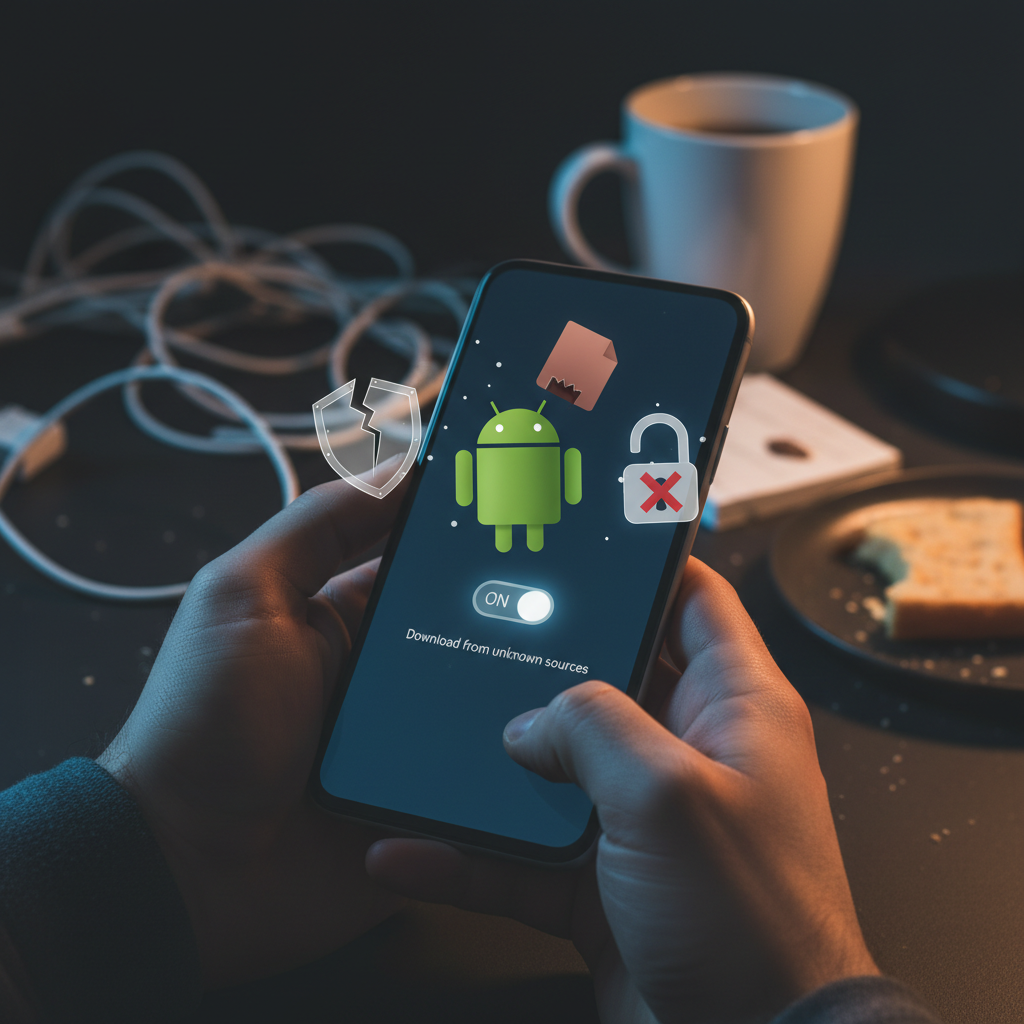
Sideloading is the act of installing an Android app from outside the Play Store, usually by downloading an APK file directly. It is common and often legitimate, but it does change your risk profile. Google’s own data shows that apps installed from outside Google Play are far more likely to contain potentially harmful apps than those from the Play Store, and the wider Android ecosystem now serves roughly 70% of mobile users worldwide, which makes it a large target for bad actors.
So the honest answer is: sideloading is not inherently dangerous, but it removes a safety net. The Play Store scans apps and vets developers. When you sideload, you take on part of that job yourself.
That shift creates real problems. You can install a repackaged app that looks genuine but carries malware. You can grant a sketchy APK broad permissions without realizing it. You can miss security updates because the app no longer auto-updates. This guide explains when sideloading is reasonable, what actually goes wrong, and the concrete steps that lower your risk.
Why People Sideload Apps
Most sideloading is for practical reasons, not piracy. Understanding the why helps you judge whether it is worth it.
- Region-locked apps: an app available in one country but not yours.
- Older versions: a Play Store update broke a feature, so you want a previous build.
- Pulled apps: an app was removed from the store but you still need it.
- Early or beta builds: developers distribute test versions as APKs.
- Open-source apps: projects like those on F-Droid ship APKs directly.
What Actually Goes Wrong When Sideloading
The risks are specific and avoidable once you know them.
Repackaged or trojanized apps
The biggest danger is an APK that looks like a real app but has been modified to add malware. Attackers take a popular app, inject malicious code, and re-sign it. Visually it can be identical.
Over-broad permissions
A sideloaded app can request access to SMS, contacts, accessibility services, or device admin. Granted carelessly, these enable spying, ad fraud, or banking-credential theft.
No automatic updates
Sideloaded apps usually do not auto-update, so security fixes can lag. An outdated app may keep a known vulnerability open.
Disabled security warnings
To sideload, you grant an app permission to install unknown apps. If you turn off Play Protect or ignore warnings, you lose the on-device scan that catches many threats.
How Android Already Protects You
Android is not defenseless. Knowing the built-in protections helps you keep them on.
Per-source install permission
Since Android 8, you grant install permission per app rather than flipping one global switch. Only the browser or file manager you trust gets to install APKs, and you can revoke it afterward.
Google Play Protect
Play Protect scans sideloaded apps too, not just Play Store ones. It warns you about known harmful apps and can block installs. Keep it enabled.
The permission model and sandboxing
Each app runs sandboxed and must ask for sensitive permissions at runtime. You can deny SMS, location, or accessibility access and still use most apps.
How to Sideload More Safely
These steps turn sideloading from a gamble into a managed risk.
1. Use a source that verifies its files
Download from places that signature-pin and scan builds rather than random forums. A source that shows you a Verified result and the developer signature lowers the odds of a repackaged APK.
2. Check the signature
An app update must be signed with the same key as the original. If a new APK refuses to install over an existing app with a signature mismatch error, that is a red flag, not an inconvenience to bypass.
3. Keep Play Protect on and scan the file
Let Play Protect scan the install, and consider uploading the APK to a multi-engine scanner before installing. No scan is a guarantee, but layered checks catch a lot.
4. Review permissions before and after
If a flashlight app wants SMS and accessibility access, stop. Deny permissions an app has no business needing, and revisit them in Settings later.
5. Revoke install permission afterward
Once installed, turn off the install-unknown-apps permission for your browser or file manager so a malicious page cannot push a silent install later.
How Sideloading Compares to the Play Store
It helps to see sideloading next to the alternative rather than in isolation. The Play Store runs automated scanning, developer vetting, and a takedown system, so most threats are caught before they reach you. That layer is exactly what you give up when you sideload, which is why Google’s figures show a higher rate of harmful apps outside its store.
The flip side is real, though. The Play Store also removes apps for policy and business reasons that have nothing to do with safety, region-locks titles, and pushes updates you may not want. Sideloading exists precisely so you can install open-source apps, betas, older versions, and region-locked titles the store will not serve. The goal is not to avoid sideloading, but to rebuild a slice of that safety net yourself: a source that verifies builds, a signature check, an active Play Protect scan, and a careful look at permissions.
Reading Permissions Like a Security Pro
The single most useful habit is to judge an app by the permissions it asks for against what it should plausibly need. A calculator does not need your contacts. A wallpaper app does not need SMS. A keyboard reasonably needs input access but not your location.
Three permission groups deserve extra caution because they are how malicious apps do the most damage. Accessibility services let an app read the screen and tap on your behalf, which is powerful and abused by banking trojans. Device-admin rights make an app hard to remove. SMS access lets an app intercept the one-time codes that protect your accounts. If a sideloaded app requests any of these without a clear reason, treat it as a warning rather than a routine prompt, and deny it.
When You Should Not Sideload
Some situations carry more risk than reward. Avoid sideloading paid apps offered for free, since these are a classic malware lure and the overrides we follow never endorse piracy. Avoid installing APKs sent over chat from people you do not know. Avoid any app that asks you to disable Play Protect entirely as a condition of working, because legitimate apps do not need you blind. If a banking, payment, or government app is involved, prefer the official store version.
How to Decide Whether Sideloading Is Worth It
Weigh the need against the source. Sideloading an open-source app from F-Droid, a beta from a developer you follow, or a verified older version from a store that scans its files is a reasonable, low-risk choice. Sideloading a cracked premium app from an anonymous link is not. The deciding factor is rarely the act of sideloading itself; it is whether you can confirm the file is the genuine, unmodified build and whether you keep Android’s protections switched on. Treat the install permission as a key you lend out briefly and take back, and most of the danger disappears.
If you do sideload, get builds from our verified, scanned downloads so you start from a known-clean file.
Frequently Asked Questions (FAQs)
Is sideloading apps illegal?
Sideloading itself is legal on Android, which is designed to allow it. What can be illegal is what you install, such as pirated paid apps. Installing open-source, beta, or region-locked apps you have a right to use is fine.
Does sideloading void my warranty?
No. Sideloading an APK does not root your phone or modify the system, so it does not void your warranty. Rooting or unlocking the bootloader is a different action that may affect warranty terms.
Can sideloaded apps contain viruses?
They can. The main risk is a repackaged app that hides malware. You lower this risk by downloading signature-checked builds, keeping Play Protect on, scanning the file, and reviewing permissions before granting them.
Should I turn off Play Protect to sideload?
No. Play Protect scans sideloaded apps too and warns about known threats. Keep it enabled. Any app that requires you to disable it as a condition of working should be treated with suspicion.
How do I sideload an app the safe way?
Download from a source that signature-pins and scans builds, verify the signature matches, keep Play Protect on, review permissions, install, then revoke the install-unknown-apps permission afterward. These steps make sideloading a managed risk rather than a gamble.