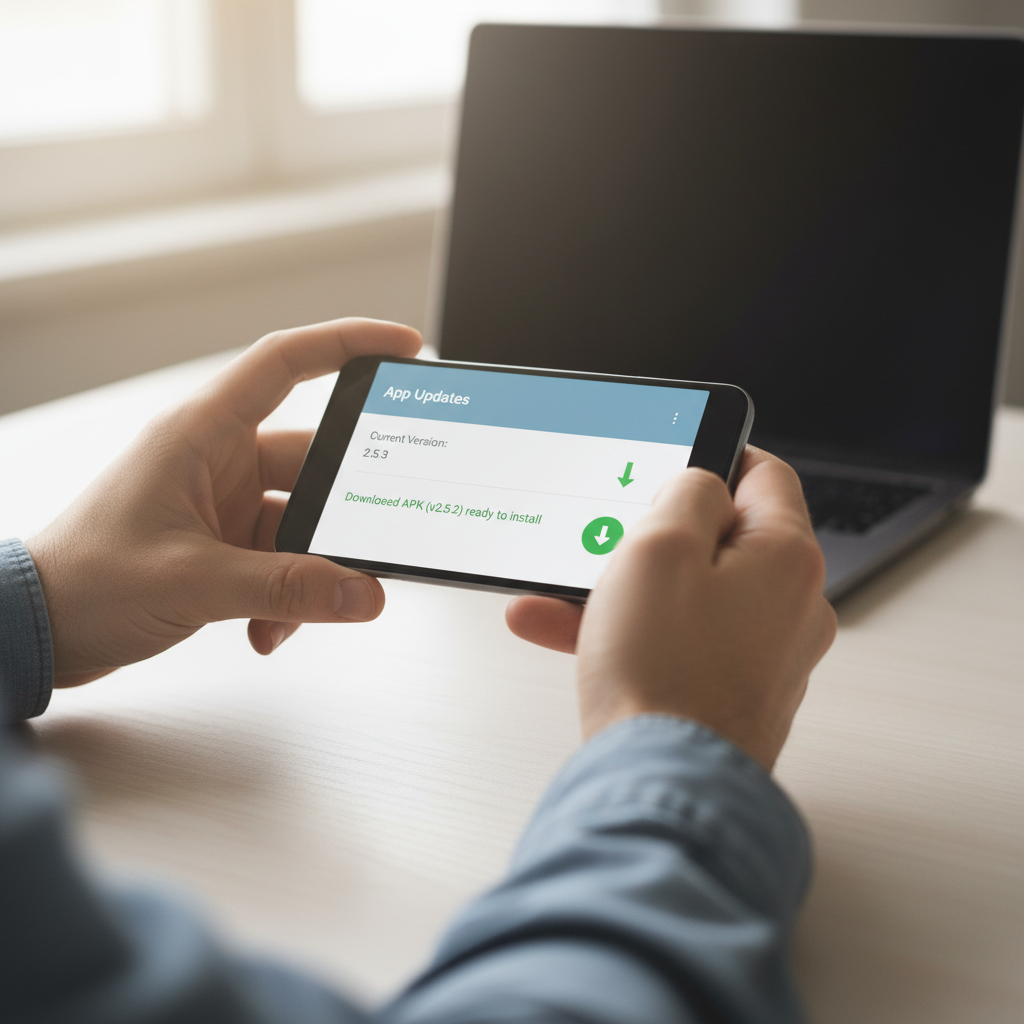
A bad update can ruin an app you rely on. A redesigned interface, a removed feature, new bugs, or heavier battery use are all common reasons people want to go back to a previous version. Android allows this, but it does not make it obvious, and doing it carelessly can lose your data or expose your phone. App updates are constant: the Google Play Store has hosted millions of apps, and with Android on the majority of phones worldwide, per StatCounter, the question of how to roll one back comes up often.
This guide explains how to downgrade an Android app to an older version the safe way: where to get a genuine older APK, how to handle the uninstall step, and how to keep an update from sneaking the version straight back. We also cover when downgrading is a bad idea.
The real obstacles are specific. Android blocks installing an older version over a newer one, so you usually have to uninstall first, which can wipe local data. Old APKs from random sites are a favorite malware carrier. And once you downgrade, the Play Store will try to update the app again unless you stop it. Each of those has a clean solution.
Why You Cannot Just Install the Old Version
Android enforces a rule that an app's version code can only go up during a normal install. If you try to install an older APK over a newer one, the install fails with a version-downgrade error. The standard workaround is to uninstall the current version first, then install the older APK. That extra step is also where the main risk to your data lives, so plan for it before you start.
How to Downgrade an Android App, Step by Step
- Back up your app data first. Uninstalling usually deletes local data. If the app stores data in the cloud or offers an export, back it up now. For irreplaceable local data, this step is the difference between a safe rollback and a loss.
- Find the exact older version you want. Note the current version number, then identify the specific earlier version you need. Use a source that keeps version history so you can pick the right one.
- Download the older APK from a verified source. Get the genuine, signature-pinned file rather than a random download. You can browse version history on a verified listing such as an app's page in our library.
- Verify the file before installing. Confirm the developer signature and scan the APK. Old versions are a common malware lure, so this step is not optional. See how to verify an APK is safe.
- Uninstall the current version. Remove the newer app through Settings or the app drawer. Accept that local data may be cleared unless you backed it up.
- Enable Install Unknown Apps for this install. Grant the permission to your browser or file manager, install the older APK, then revoke the permission. Our unknown apps guide walks through it.
- Stop the app from auto-updating. In the Play Store, open the app's page, tap the menu, and turn off auto-update for that app so it does not jump back to the version you just removed.
Keeping the Old Version From Updating Itself
A downgrade is pointless if the app silently updates again overnight. Two settings control this. First, disable auto-update for the specific app on its Play Store page. Second, if you want extra certainty, turn off automatic updates globally in Play Store settings and update apps manually. The signature on the older APK must match the Play Store version for any future manual update to work, which is another reason to use a genuine file rather than a modified one.
The Challenges and Risks of Downgrading
Rolling back is useful but not free of trade-offs. Weigh these before you commit.
Data loss from the uninstall step
Because Android blocks installing older over newer, you must uninstall first, and that usually clears local data. Cloud-synced apps recover after sign-in, but locally stored notes, saves, or settings can vanish without a backup.
Old versions as malware bait
Search results for old app versions are full of tampered files. An attacker knows you want a specific build and serves a poisoned one. Only use a source that keeps real version history and verifies files.
Security holes in older builds
Updates often patch security flaws. Running an old version can reopen a vulnerability the developer already fixed. Downgrade when you must, then return to the current version once the issue you cared about is resolved.
Server-side changes you cannot roll back
Some apps drop features on the server, not in the app. Downgrading the APK will not restore those, and an old client may simply stop working if the service requires a minimum version.
Deciding Whether a Downgrade Is Worth It
Treat downgrading as a temporary fix, not a permanent state. It is the right move when a recent update broke a feature you depend on, introduced a serious bug, or hurt performance, and the developer has not yet fixed it. It is the wrong move if the change was server-side, if the old build has known security flaws, or if the app requires a minimum version to connect. When you do roll back, back up your data, use a verified older APK with real version history, verify the file, and disable auto-update so it sticks. Then watch for a corrected release and move forward again when it lands. To find genuine older versions with full history, start at the Verified library.
Frequently Asked Questions (FAQs)
Can I downgrade an app without losing data?
Sometimes. Apps that sync to the cloud restore your data after you sign back in, but apps that store data locally usually lose it during the required uninstall. Back up or export your data first whenever it is not stored online.
Why does Android block installing an older app version?
Android only allows an app's version code to increase during a normal install, so an older APK over a newer one fails with a downgrade error. The standard fix is to uninstall the current version first, then install the older file.
Where can I safely get an older version of an app?
Use a source that keeps genuine version history and signature-pins its files, then verify the download yourself. Avoid random search results for old versions, which are a common malware carrier, and confirm the signature before installing.
How do I stop an app from updating after I downgrade?
Open the app in the Play Store, tap the menu, and turn off auto-update for that app. For more certainty, disable automatic updates globally in Play Store settings and update apps manually so the old version stays in place.
Is downgrading an app safe?
It is a measured risk if you use a verified file and back up your data, but older builds can carry unpatched security flaws. Treat a downgrade as temporary, return to the current version once your issue is fixed, and never use modified APKs.