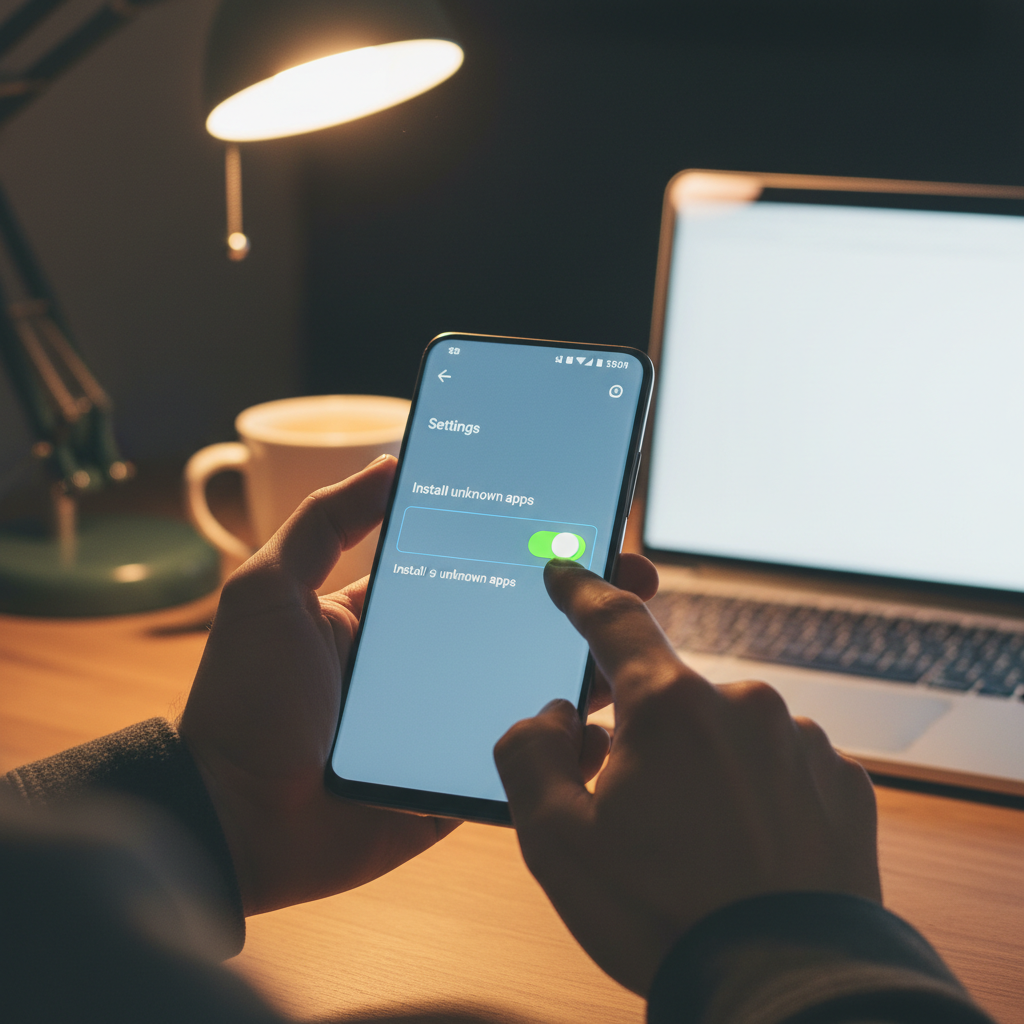
Every Android phone can install apps from outside the Play Store, but the system hides that ability behind a permission called Install Unknown Apps. Turning it on is simple. Doing it without exposing your phone takes a little care. Mobile malware is a real and growing problem: security researchers at Kaspersky reported blocking millions of mobile malware, adware, and riskware attacks in a single year, and a chunk of those arrive through sideloaded files. Since Android runs on the majority of phones worldwide, per StatCounter, the safe way to sideload is worth learning once.
This guide walks you through enabling Install Unknown Apps on modern Android, then locking the setting back down so a single careless tap cannot put something nasty on your device. The aim is to use the feature like a professional, not to disable your phone's defenses.
The risk people run into is rarely the setting itself. It is leaving the permission switched on for a browser forever, installing a file from an ad-heavy page without checking it, or panicking at Android's warning and approving everything. Each of those is avoidable.
What Install Unknown Apps Actually Does
On Android 8.0 and later, the old single Unknown Sources toggle was replaced by a per-app permission. Instead of opening the whole phone to sideloading, you grant the ability to one specific app, usually your browser or file manager. That app is then trusted to start an install. Every other app stays blocked by default.
This per-source model is a genuine safety improvement. It means a random app cannot silently trigger an install, and you can revoke the trust the moment you are done.
How to Enable Install Unknown Apps, Step by Step
- Download the APK first. Save the file from your source, ideally a curated and scanned one, before you change any setting. You can browse signature-pinned files at the Verified library.
- Tap the file to open it. Use your file manager or the browser's downloads list. Android will block the install and show a message that this source is not allowed to install apps.
- Tap Settings on that prompt. This jumps you straight to the Install Unknown Apps screen for the exact app you used, such as Chrome or Files.
- Turn on Allow from this source. The switch applies only to that one app, not your whole phone.
- Go back and confirm the install. Return to the file and approve it. Review the permissions the app requests before you continue.
- Turn the permission back off. Return to the same screen and disable Allow from this source once the app is installed. This is the step most people skip and the one that matters most.
The exact menu names vary slightly by manufacturer. On most phones you can also reach it through Settings, then Apps, then Special access, then Install unknown apps, where you will see every app and its current state.
The Challenges and Risks of Sideloading
Enabling the permission is not dangerous on its own. The danger is in what you install while it is on. These are the traps to watch for.
Leaving the permission on permanently
If your browser keeps install rights forever, a malicious download page only needs one careless tap to push an app. Granting the right per-install and revoking it after keeps that window tiny.
Tampered or repackaged files
A popular app can be repackaged with adware and re-signed so it looks real. The fix is to verify the developer signature and scan the file, which we cover in how to verify an APK is safe.
Over-broad permission requests
At the install screen, watch what the app asks for. A simple utility that wants SMS, contacts, and accessibility access is a warning sign worth stopping for.
Disabling Play Protect on bad advice
Some shady guides tell you to switch off Google Play Protect to silence warnings. Play Protect scans sideloaded apps too, so leaving it on is part of your safety net, not an obstacle.
How the Permission Changed Across Android Versions
Understanding the history helps you find the setting on any phone. On Android 7 and earlier, a single Unknown Sources toggle in security settings opened the whole device to sideloading at once. It was simple but blunt, because one switch trusted every app on the phone to install software.
Android 8.0 replaced that with the per-app model you use today, where each browser or file manager is trusted individually. Later versions kept this approach and tightened it further, adding clearer prompts and making it easier to see which apps currently hold the permission. On most recent phones, Settings, then Apps, then Special access, then Install unknown apps gives you a full list with a switch for each. Manufacturer skins from Samsung, Xiaomi, and others may rename the menus slightly, but the per-source logic is the same everywhere.
Smart Habits That Keep Sideloading Safe
A few repeatable habits turn sideloading from risky into routine. Download from sources that scan and signature-pin their catalog rather than search-result ad pages. Scan unfamiliar files before installing, which we detail in how to check any APK for malware. Keep Play Protect enabled. Read the permission list at install time. And revoke the Install Unknown Apps permission as soon as the app is on your phone.
When Sideloading Is the Right Call
You do not need this feature for everyday apps that live on the Play Store. You do need it for apps that are region-locked where you live, older versions you want to roll back to, beta builds, or apps that were removed from the store but that you still trust. In those cases the question is never simply whether sideloading is safe. It is whether this specific file, from this specific source, has been verified. Grant the permission for one install, check the file, approve it, then switch the permission off. Treat it as a door you open, walk through, and close behind you, and sideloading stays a measured, controlled risk. For curated, scanned downloads, start at the Verified library.
Frequently Asked Questions (FAQs)
Is it safe to enable Install Unknown Apps?
Enabling it is safe by itself, because Android grants the right to only one app at a time. The risk is what you install while it is on. Grant it per-install, verify the file, then turn the permission back off.
Where is the Unknown Sources setting on newer Android?
Since Android 8.0 the single toggle is gone. Instead, go to Settings, then Apps, then Special access, then Install unknown apps, and grant the permission to the specific browser or file manager you are using.
Should I turn off Play Protect to install an APK?
No. Play Protect scans sideloaded apps and is part of your defense. Some unsafe guides suggest disabling it to hide warnings, but leaving it on helps catch malicious files without blocking legitimate installs.
Why does Android keep warning me about the app?
The warning appears because the file did not pass the Play Store's review, not because it is necessarily bad. It is a checkpoint asking you to confirm you trust the source. Verify the signature and scan the file before approving.
Should I leave Install Unknown Apps turned on?
No. Leaving it on lets a malicious page trigger an install with one tap. Turn it on only for the install you are doing, then return to the same setting and switch it off afterward.